
gPhotoShow Remote: Android App to Control Your Digital Picture Frame
June 2026 · Software Release · 2 min read
Control your gPhotoShow Pro digital picture frame straight from your phone. The new UDP Remote Control plugin, paired with our brand-new gPhotoShow Remote app for Android, turns any Windows PC running a slideshow into a fully remote-controllable photo frame.
A real remote control for your digital photo frame
A digital picture frame built with gPhotoShow Pro usually runs on a PC with no keyboard or mouse within reach. Until now, sending it a command meant relying on an MQTT broker or third-party UDP tools. With the UDP Remote Control plugin and the gPhotoShow Remote Android app, everything happens with a single tap on your smartphone, over your local Wi-Fi network.
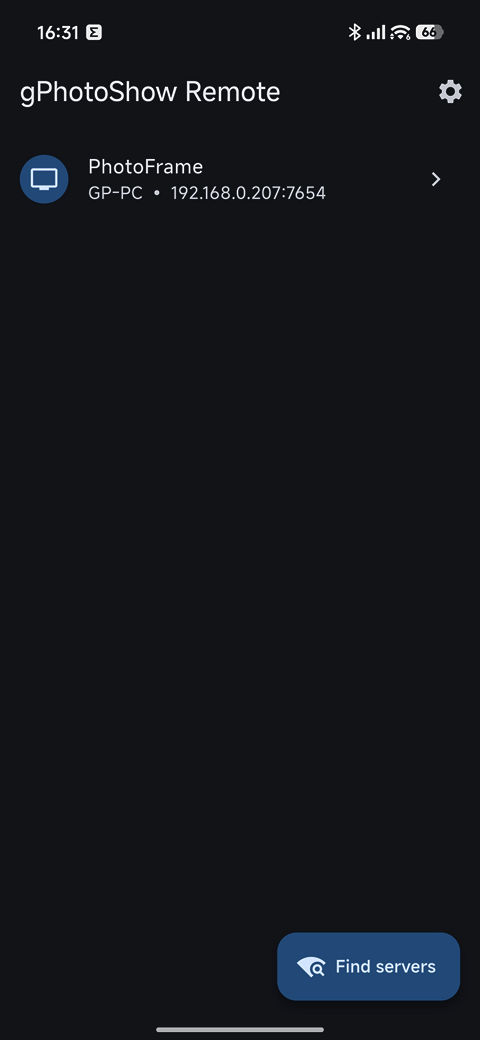
The app automatically discovers every gPhotoShow Pro instance running on your network, so there is nothing complicated to configure. Open the app, tap Find servers, and your photo frame appears in the list, ready to be controlled.
Everything at your fingertips
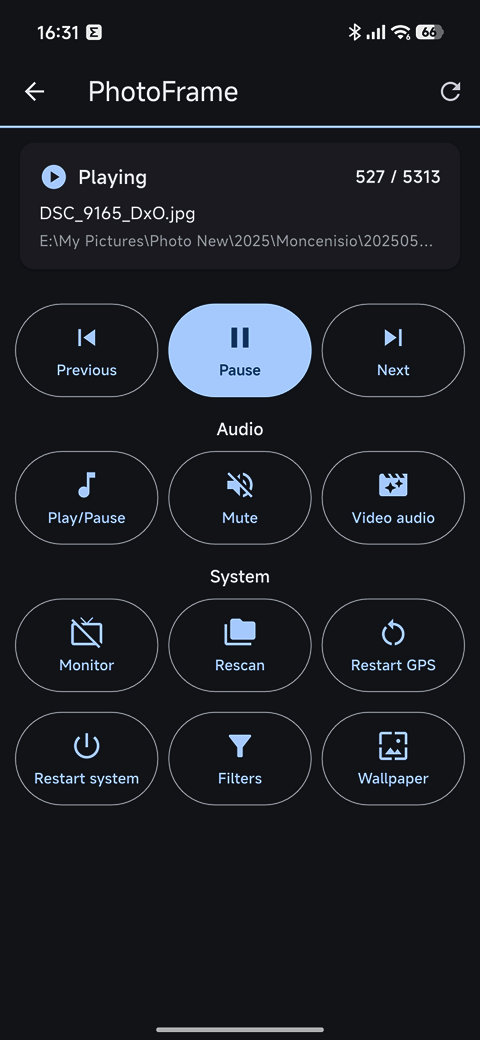
From the app you can see what is currently playing and jump to the controls you use most on a daily basis:
- Playback: pause or resume the slideshow, skip to the previous or next image.
- Audio: play or pause background music, mute the sound, toggle audio from video files.
- Monitor: turn the screen on or off to save power when nobody is watching.
- Rescan: rebuild the file list after you add new photos to your folders.
- Filters: instantly show only the pictures you want — by keyword, rating or date.
- Wallpaper & more: set the current image as desktop wallpaper, restart the slideshow, and more.
The Filters feature is especially handy on a photo frame: with a couple of taps you can switch from family pictures to landscapes, or display only photos from the last few weeks, without ever touching the PC.
Quick setup
Setting up the plugin takes less than a minute:
- Open the gPhotoShow Pro plugin settings and enable UDP Remote Control.
- Choose a free UDP port (any number between 1024 and 65535 is usually fine).
- Give the server a name so you can recognise it in the app.
- Optionally set a token, which acts as a password for incoming commands.
The first time the slideshow starts, Windows will ask for firewall permission: just click Allow access so the plugin can receive commands from the app.
gPhotoShow Remote is in beta
The gPhotoShow Remote Android app is currently in a closed beta. If you would like to try it on your own digital picture frame and help us shape the final release, we'd love to have you on board as a beta tester.
Prefer not to use the app? The UDP Remote Control plugin still accepts plain text commands, so you can keep driving gPhotoShow Pro from any UDP-capable tool or your own scripts.
