
Control Screen Saver 2.0 Released
June 2026 · Software Release · 3 min read
We are pleased to announce the release of Control Screen Saver 2.0 (ControlSS). This free screen saver manager for Windows now adds a Keep Awake function, an instant Lock Workstation command, and a new Light / Dark / Auto menu appearance. Here is everything that is new.
Control Screen Saver has always been about one thing: giving you fast, one-click control of your Windows screen savers straight from the system tray, without ever opening the Windows display settings. Version 2.0 builds on that foundation with features that make the utility more useful every single day — whether you are running a presentation, a kiosk, or a long unattended task.
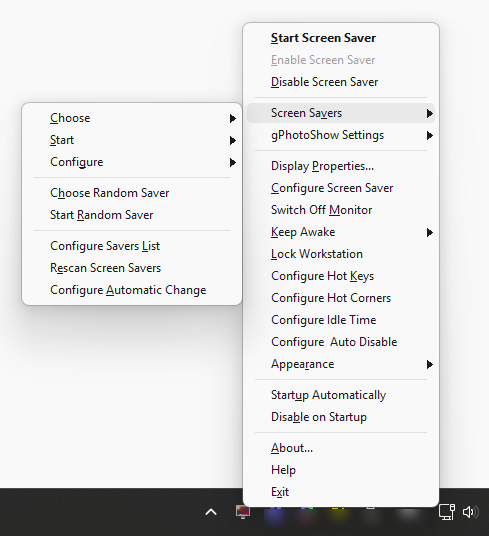
Keep Awake
The headline feature of version 2.0 is Keep Awake. With a single click from the tray menu you can temporarily prevent the screen saver from starting and stop the display and the system from going to sleep. You can keep the computer awake for 30 minutes, 1 or 2 hours, until midnight, or indefinitely until you turn it off again.
This is ideal for presentations and demos, large downloads, long renders, backups and any other task that must run uninterrupted. When the timer expires — or when you disable Keep Awake manually — your normal screen saver and power settings resume automatically, with nothing left to clean up.

Lock Workstation
Version 2.0 adds a dedicated Lock Workstation command. You can lock your PC instantly from the tray menu, from a global hot key, or by moving the mouse into a hot corner. It is one of those small shortcuts that quickly becomes part of your daily routine, letting you secure your screen the moment you step away from the desk.

Light / Dark / Auto Menu Appearance
The tray menu now respects the Windows theme. From the new Appearance submenu you can set the menu to Auto, so it follows the current Windows light or dark mode preference, or force it to Light or Dark regardless of the system setting. The result is a menu that looks at home on any Windows 11 or Windows 10 desktop, day or night.

Everything You Already Rely On
Version 2.0 keeps all the features that make ControlSS a handy companion for Windows screen savers:
- One-click tray control — start, enable or disable the current screen saver from the tray icon, with the active saver and its status always shown in the tooltip.
- Choose, start & configure any saver — select the default Windows screen saver, launch any installed saver on demand, or open its settings from a tidy menu.
- Random & automatic change — start a random screen saver or let ControlSS rotate it automatically on startup, after each run, or on a schedule.
- Global hot keys & hot corners — trigger the saver, lock the workstation or switch off the monitor with a keyboard shortcut or a screen corner.
- Custom idle time & Auto Pause — set your own idle timeout and pause the saver automatically while chosen programs are running.
- gPhotoShow integration — switch slideshow sets (
.gssfiles) manually or automatically when used with gPhotoShow.
System Requirements
- Windows 11, Windows 10, Windows 8.1 or Windows 7 (SP1 or later)
- Native 64-bit build, crisp on high-DPI displays
- A few megabytes of free disk space
Download Control Screen Saver 2.0 — It's Free
Control Screen Saver is completely free for personal and commercial use. No adware, no bundled software, no sign-up — just download, run and take control of your screen savers.
Download Free See All Features