Page 2 of 2
Re: gss configuration files
Posted: Sat Oct 17, 2026 9:45 pm
by ank
Yes its enabled
Re: gss configuration files
Posted: Sat Oct 17, 2026 9:46 pm
by ank
Yes its enabled
Re: gss configuration files
Posted: Sun Oct 18, 2026 10:14 am
by gpb
I’ve checked the code: if the algorithm that searches for space for a small image fails to find any, it proceeds to change the background, ignoring the current settings. Without resetting the scrapbook, this happens every time a new image is added.
To confirm this hypothesis, I need an extended log generated by the program. On the "Error and Logging" page, check the "enable extended logging" box, then run the slideshow again until you encounter the issue.
Try disabling "Reduce overlap between images" and decreasing the spacing between images. That should resolve the issue.
Re: gss configuration files
Posted: Sun Oct 18, 2026 5:03 pm
by ank
gpb wrote: Sun Oct 18, 2026 10:14 am
Try disabling "Reduce overlap between images" and decreasing the spacing between images. That should resolve the issue.
That seems indeed to have fixed the issue.
I've done the log. Ran a preview / Change nr of images from 6 to 8 / Ran a preview / Change Frame size from 1 to 2 pixel / Ran a preview -> the issue is there.
Re: gss configuration files
Posted: Sun Oct 18, 2026 5:14 pm
by gpb
The log confirms the bug. It will be fixed in the next update; for now, use the settings I recommended.
Re: gss configuration files
Posted: Sun Oct 18, 2026 5:29 pm
by ank
Thanks. I have another question.
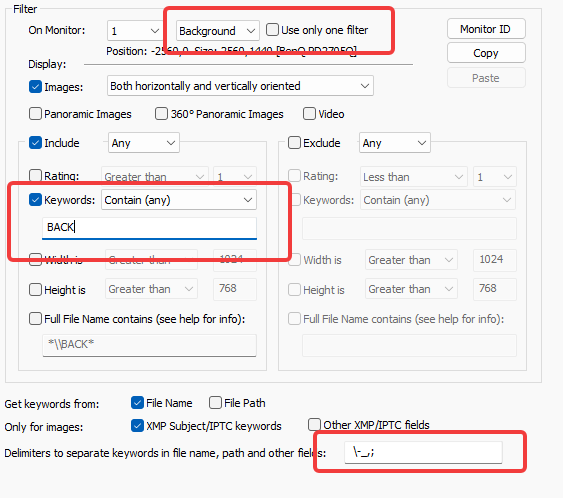
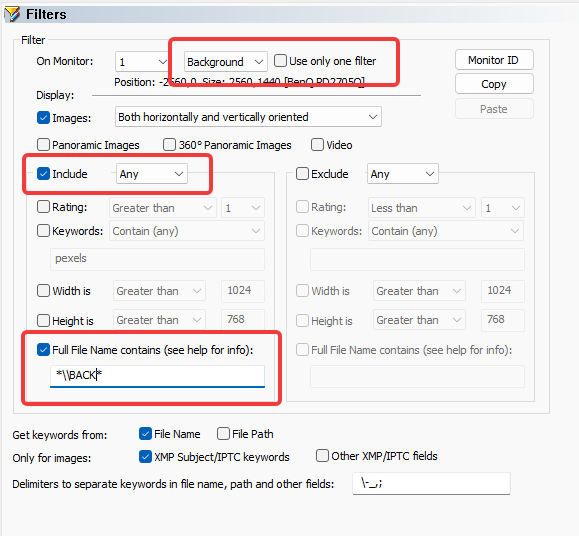
I would like to have specific images for the background and not have those displayed as scraps. I want to start the images' names with 'BACK' to indicate this.
As I understand this is possible using the Filters settings but my trials to achieve this were unsuccessful. Could you please show me a screenshot or a gss file on how I need to do this?
Re: gss configuration files
Posted: Sun Oct 18, 2026 6:08 pm
by gpb
Yes, you can do that by using filters. Obviously, you need to have added the directory containing the BACK... files to Images
if file names are in the form BACK- (BACK-001.jpg) , then - char can be used as a keyword separator and you can use keywords. If you are using another separator add it to the text box:
- GPhotoShow64_gHRu7yaAm1.png (27.9 KiB) Viewed 11 times
You can also match a any sequence of characters in this way:
- GPhotoShow64_G9N07sKE7z.png (29.84 KiB) Viewed 11 times